


Introduction
APEX 26.1 introduced a new Text Message-Based approach to application translation. Unlike the traditional Application-Based approach, it allows one application to support multiple languages without generating shadow applications.
To try out the new approach, I translated the APEX Developer Blogs app to Spanish.
I thought this would be easy. I only needed to ask my coding agent to "translate this app to Spanish". In this post I will show you what happened when I tried the "easy" route and what ended up working.
App translations in APEX 26.1
Translating an already translated pre-APEX 26.1 app
APEXlang cannot export an application that still contains translated text in the Translation Repository. If a pre-26.1 application already uses Application-Based translation, migrate its existing translations before exporting it as APEXlang. Steve Muench's Migrate to Text-Message Translations explains how to preserve existing translations through XLIFF during the migration to the new approach.
Text Message-Based translations do not need shadow apps
When you choose Text Message-Based translation, APEX no longer requires shadow applications or the seed-and-publish process. Instead, translations are stored as shared-component Text Messages and referenced from application components using substitutions such as &{MESSAGE_NAME}. when the application’s Compatibility Mode is 24.2 or later. The older &APP_TEXT$MESSAGE_NAME. form also remains valid. This removes much of the operational overhead associated with maintaining shadow applications.
Example messages in shared-components/messages.apx:
textMessage BLOG_OWNER (
    message {
        text: Blog Owner
        language: en
    }
)

textMessage BLOG_OWNER (
    message {
        text: Propietario del blog
        language: es
    }
)
Example reference to a the above message in a report column heading:
        column BLOG_OWNER (
            type: plainText
            heading {
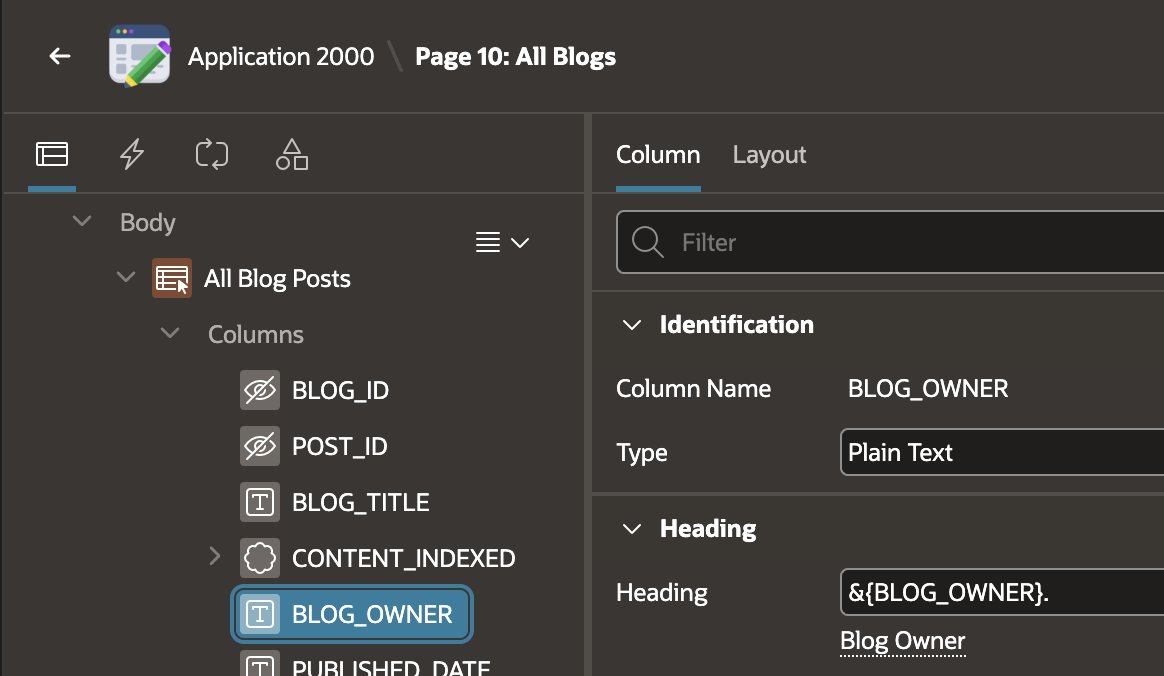
                heading: &{BLOG_OWNER}.
            }
            ...
Prerequisites
Before you start make sure you have installed the apex skill in your coding agent and have the latest version of SQLDeveloper for VS Code and SQLcl.
Application setup
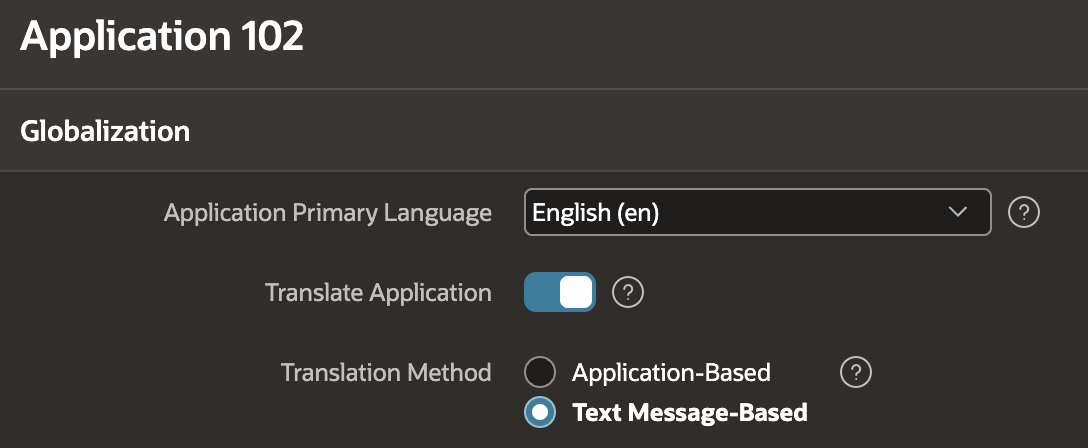
You need to edit the application definition, and under Globalization, enable application translation and choose Text Message-Based translation.
Next, add the first target language. Under Shared Components > Application Translations, click Add Language, select the language, and click Add Language again.
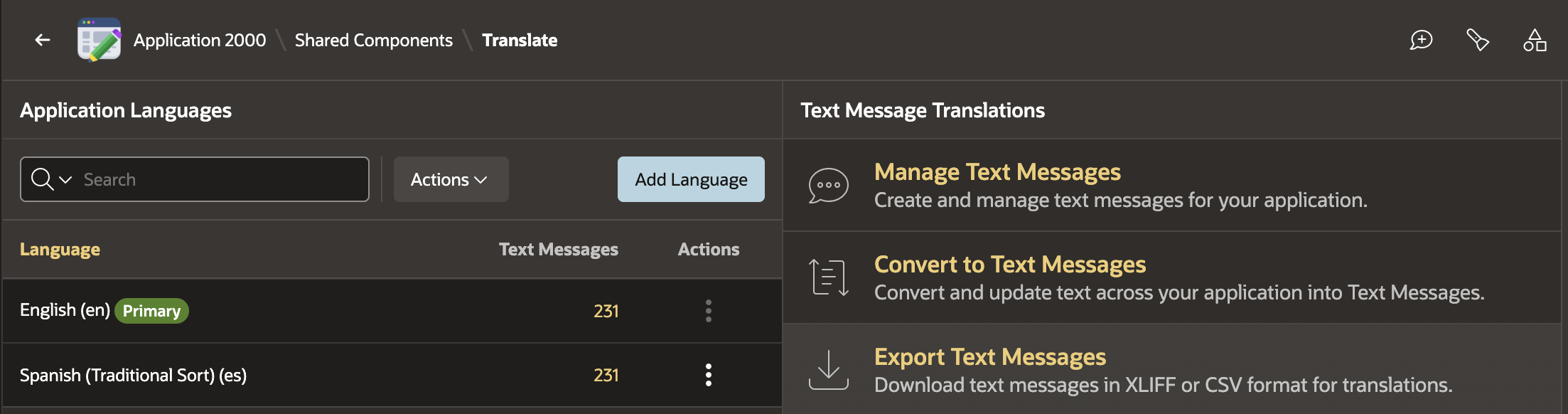
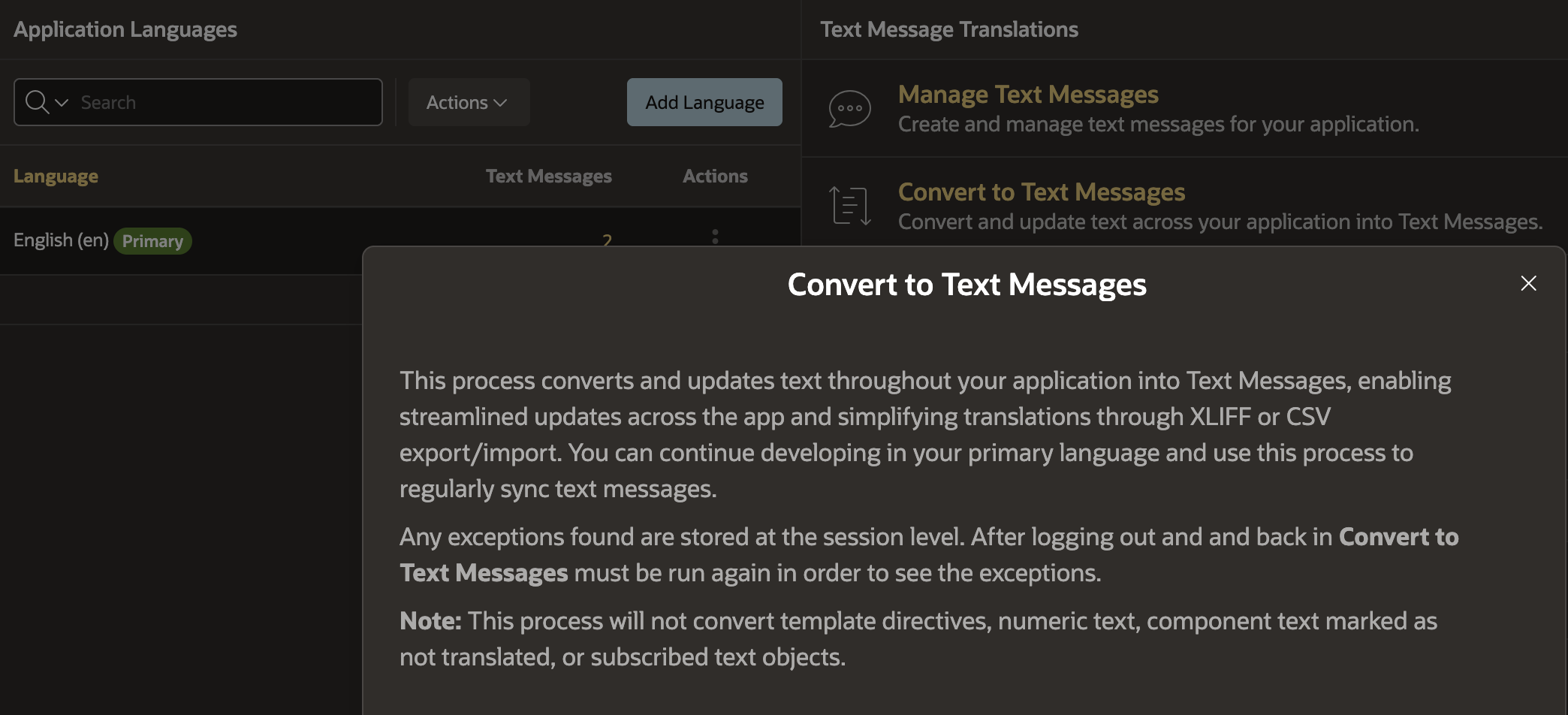
Oracle’s documented workflow shows Convert to Text Messages as a separate step before adding a language. However, when you add the first Text Message-Based language, App Builder performs that initial conversion automatically. It creates Text Messages for supported translatable strings, updates application components to reference them, and synchronizes the primary-language values into the new language.
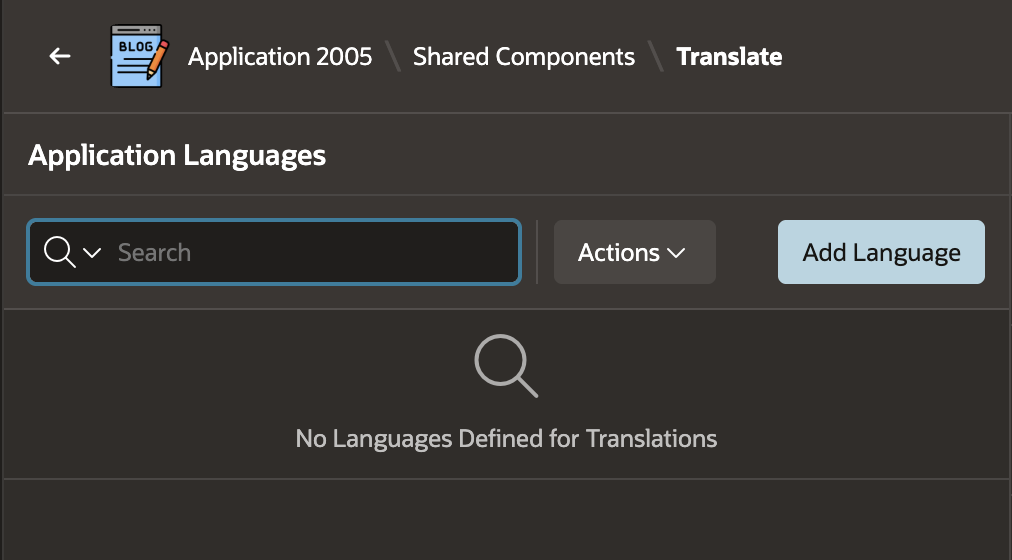
Once the process is complete, you should see something like this:
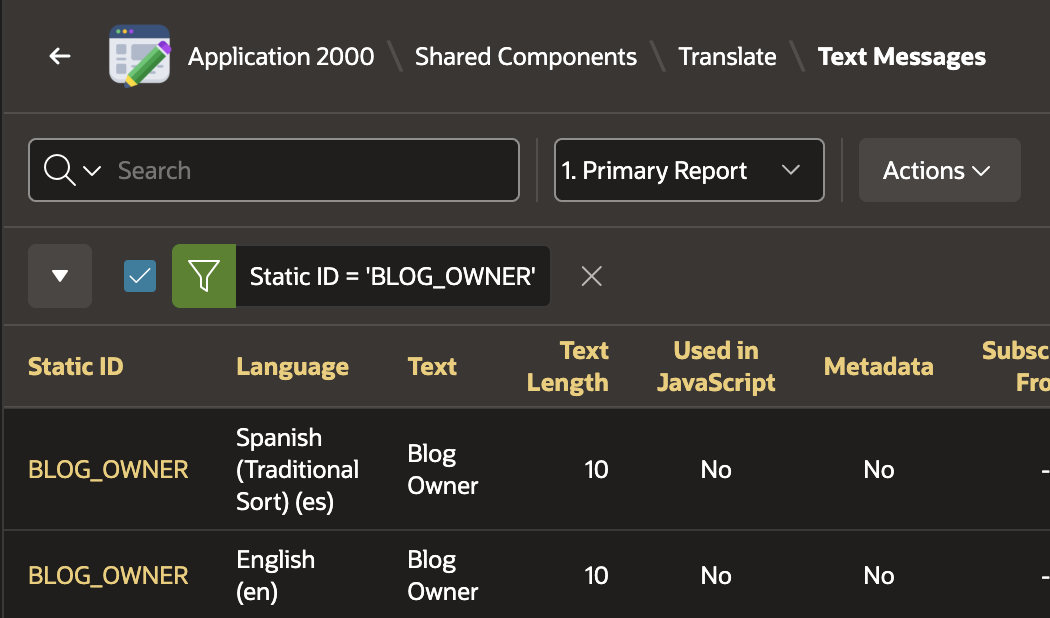
A downside is that APEX derives each generated Static ID from a normalized uppercase version of the primary-language text, so longer phrases can produce large, unwieldy IDs.
The screenshot below shows one message BLOG_OWNER that was generated after adding the new language.
Conversion also replaces supported inline application text with references to the generated Text Messages. The example below shows BLOG_OWNER referenced from a report column heading.
When you export the app using the APEXlang format you will see all of the translations in the file shared-components/messages.apx.
Keeping Text Messages synchronized
When you add or change inline user-facing text, run Convert to Text Messages again to capture the new or updated values and replace them with Text Message references. It does not translate them, so the new entries must still be translated and reviewed.
The easy button didn't work
The first thing I tried was to export the app in APEXlang format and ask my coding agent “Translate this app to Spanish”. My first reaction was amazement. My coding agent enabled Text Message-Based translation, added Spanish, and translated everything. The problem was that when I say it translated everything, I mean everything. It translated page names and titles, region names and titles, etc. It was a mess. It even translated substitution strings!
If you think about it, why wouldn't it.
The non-obvious decisions still belong to the developer: deciding what should be translated, separating display text from application identifiers, protecting substitution strings and markup, and proving that the result works in the running application. An agent is valuable for applying a carefully bounded translation plan, not for making those decisions implicitly.
Non-obvious considerations
Start with the translation architecture, not the prompt
APEX 26.1 applications can use Text Message-based translations; legacy applications can still contain Translation Repository content that APEXlang does not support.
A coding agent should not be positioned as a migration shortcut. Preserve every existing language and translation, move the application to the supported model, and confirm that the APEXlang export succeeds before changing strings.
Text Message-Based translation can reuse one message for every occurrence of the same source string. For example, one
CANCELmessage can supply the label for every Cancel button. Under the legacy approach, the same source text could appear repeatedly under different generated XLIFF identifiers, so existing translations must be merged carefully during migration.
Translate display text, preserve application identity
- Translate only properties that are confirmed to contain user-facing text. Preserve aliases, Static IDs, request values, return values, and developer-facing identifiers. Do not assume that every property named
nameortitlehas the same role across all component types.
Define the translatable surface explicitly
Include only the agreed UI components: page and region titles, item and button labels, confirmation messages, report headings, menu and navigation-bar items, and static LOV display values.
Keep dynamic SQL, PL/SQL, JavaScript, URLs, authorization logic, page aliases, request values, and machine-readable LOV return values outside the agent's translation scope unless they are separately designed for localization.
Review text that appears more than once. In the Text Message model, identical source text may be shared; the right translation can depend on context even when the English source is identical.
Treat tokens and markup as code
Translate the surrounding text, but preserve substitution strings such as
&INSTANCE_NAME.exactly. If the agent cannot preserve a token confidently, it should leave that entry unchanged and report it.Preserve HTML structure. When a trusted Text Message intentionally contains HTML such as
<br>, reference it using RAW output—for example,&{MESSAGE_KEY}!RAW.; so APEX does not escape the markup.Apply the same care to placeholders, format masks, HTML entities, ampersands, and any text that mixes prose with code or data.
Design for the screen, not just linguistic correctness
Short report headings, buttons, and navigation labels are layout constraints. A correct translation that doubles the width can degrade an Interactive Grid, toolbar, or responsive page.
Ask the agent to keep comparable length where feasible, then validate the result in the target language and at the supported breakpoints. “Comparable” is a review guideline, not a reason to use an unnatural translation.
Validate the running application
Validate the edited application with SQLcl using
apex validate -input <application-directory>, review and address any errors, and then import or deploy using your normal method.Run the application in each target language and test navigation, dialogs, validations, reports, menus, and text-message resolution.
Treat agent output as a proposed implementation: source review alone does not demonstrate correct runtime language selection, unbroken substitutions, or usable layout.
Have a fluent reviewer resolve terminology, formality, regional language choices, and collisions where one English label means different things in different contexts.
What did work
I followed the approach described above:
Enable Text Message-Based translation.
Add Spanish under Shared Components > Application Translations > Add Language. Because Spanish was the first target language in my application, App Builder automatically converted the supported inline text into Text Messages and synchronized those messages to Spanish.
Export the application in APEXlang format.
The following prompt gave the agent a deliberately narrow, reviewable task. It uses the English entries as source text but restricts changes to the corresponding Spanish entries in messages.apx.
# Goal

Translate the APEX application to Spanish using language code `es`.

# Allowed changes

- In `shared-components/messages.apx`, use each `language: en` entry as the source.
- Do not modify any `language: en` entry.
- Write the Spanish translation only to the corresponding `language: es` entry.
- Do not change application, page, region, item, column, button, or shared-component names.
- Do not modify any file outside `messages.apx`. If a message contains HTML and one of its references may require `!RAW`, report the message and every affected reference without changing them.

# Translation rules

- Inspect where each message is used before translating it.
- Preserve substitution strings, placeholders, HTML, format masks, and entities exactly.
- If a token cannot be preserved confidently, leave the entry unchanged and report it.
- For report and Interactive Grid column headings, keep the translation reasonably close to the English length where natural.
- Report every skipped or uncertain translation.
In my test, this translated every Spanish entry while leaving the English entries and application-component identifiers unchanged.
Because the translations were generated by AI, have a fluent speaker review them when terminology, tone, or regional usage matters.
Add a language selector
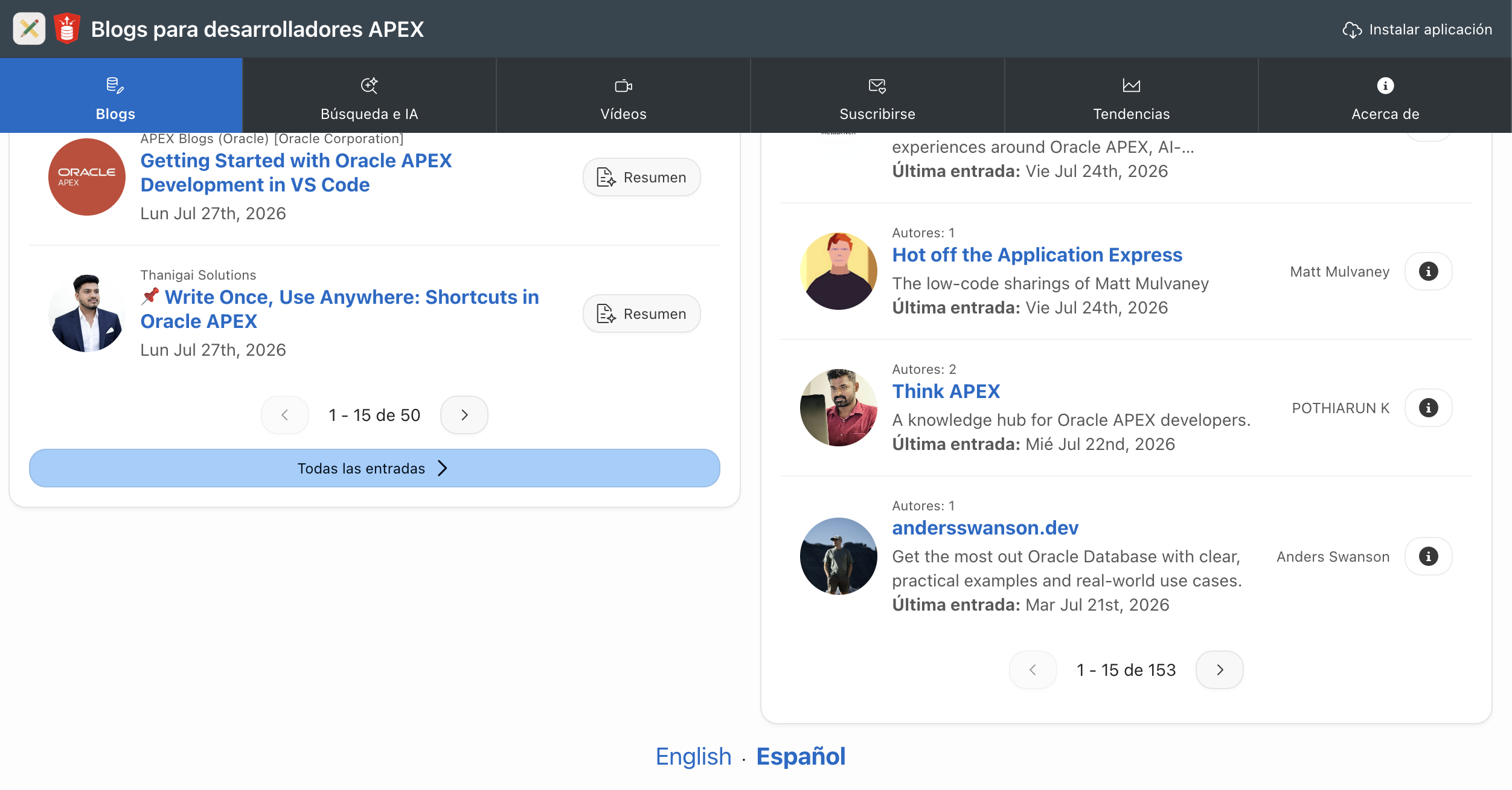
Matt Mulvaney documented an approach for a nice stylized language selector in his post # A stylised Language Selector Region for APEX I prompted my coding agent to do this for me using the below prompt:
Add a language selector to page 1. Use the approach outlined here in Matt Mulvaney's post but apply it to page 1. https://mattmulvaney.hashnode.dev/a-stylised-language-selector-region-for-apex.md
I used the
.mdURL for the agent prompt. Hashnode now provides Markdown versions of blog posts. Markdown is a much cleaner format for agents to consume.
Where used report
One challenge with the new approach is that messages.apx does not show where each Text Message is used, making contextual review difficult. I generated a where-used report with the following prompt:
Review `APEXlang/apex_blogs/shared-components/messages.apx` and create a business-user-friendly Excel report showing where each Text Message appears in the APEX Developer Blogs application.

Output: `DOCS/apex_developer_blogs_where_used.xlsx`

Include these columns:

1. Message Static ID
2. English text (`language: en`)
3. Spanish text (`language: es`)
4. Where used in the application

For “Where used in the application,” use only plain-English UI context:

- Use the English page title, never the page number or page filename.
- For region content, use the English region title.
- For columns, use the English column heading.
- For page items and buttons, use the English label.
- Show the hierarchy where helpful, for example: `Expense Report — Report Lines — Reimbursement Amount`.
- For validation messages and emails, use a plain-English business description, for example: `Expense Line — validation message` or `Expense report approval-result email`.

Do not include implementation details such as:

- APEX substitution syntax (for example, `APP_TEXT$`)
- Static IDs in the context column
- Page numbers
- APEX component types such as “Region Column”
- Source filenames, line numbers, package names, or code references

Also include a business-friendly “Review Notes” worksheet listing:

- Messages not currently used
- Messages used in more than one place, with their plain-English contexts
- Any dynamically constructed message names that require manual review

Trace references from short Text Message substitutions, legacy APP_TEXT substitutions, and `APEX_LANG.GET_MESSAGE` / `APEX_LANG.MESSAGE` calls. Validate the workbook structure and visually review it before delivery.
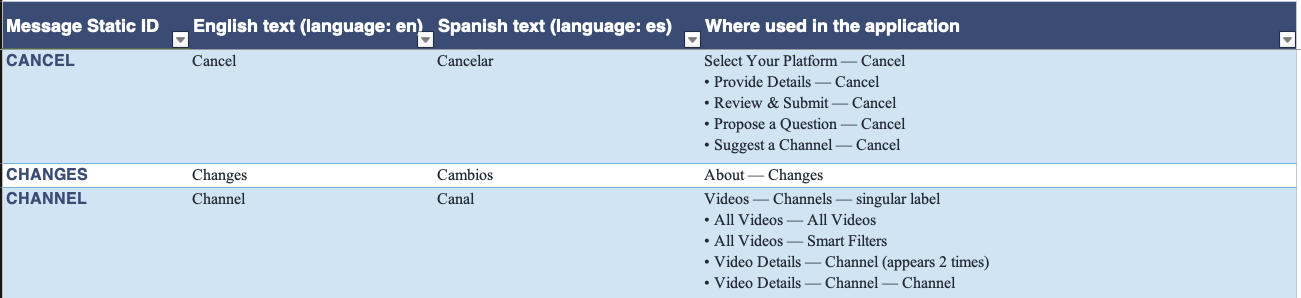
The screenshot below shows an excerpt from the report, illustrating how the new approach reuses a message when the same English value appears in multiple places.
This is a static source analysis. It can find direct references such as
&{MESSAGE_NAME}.,&APP_TEXT$MESSAGE_NAME., and literalAPEX_LANG.GET_MESSAGEcalls, but it may not find message names constructed dynamically at runtime.
Other translation options
In APEX 26.1, you can export Text Messages in CSV format as well as XLIFF. CSV is useful because you can upload the file to an AI tool such as ChatGPT for translation. It is also easier for human reviewers to use than XLIFF unless you have specialist software to handle XLIFF.
More on Globalization and Translations
Globalization is a big subject and in this post I have focused on the mechanics of translating APEX 26.1 apps using an AI coding agent. For more on general best practices on globalization (and translations), take a look at this post from Pretius: Globalization in APEX
Conclusion
Text Message-Based translation lowers the operational cost of maintaining a multilingual APEX application, while APEXlang gives coding agents a practical format for editing the translations. Neither decides what should change. The reliable workflow is to let APEX convert supported UI text into Text Messages, restrict the agent to target-language entries, preserve tokens and markup, and validate the result in the running application. “Translate this app” is not a translation specification.
About the author
- Hi, thanks for stopping by! I am focused on designing and building innovative solutions using AI, the Oracle Database, Oracle APEX, and Oracle REST Data Services (ORDS). I hope you enjoy my blog.
Comments
Join the discussionNo comments yet. Be the first to comment.